New Project
This page walks through creating a Wisej.NET application in Visual Studio 2026 (or 2022) with the Wisej.NET 4.1 extension: which template to pick, what the wizard asks, what it generates and what each file is for. It assumes the extension is already installed — Getting Started covers the installation.
Choose a template
Open the Create a new project dialog: click Create a new project in the Visual Studio start window, or use File → New → Project... (Ctrl+Shift+N) from inside the IDE.
Type Wisej in the search box, or set the language filter to C# or Visual Basic and the project-type filter to Wisej.NET 4 or Wisej.NET 4 Hybrid. Either way the dialog lists the Wisej.NET templates:
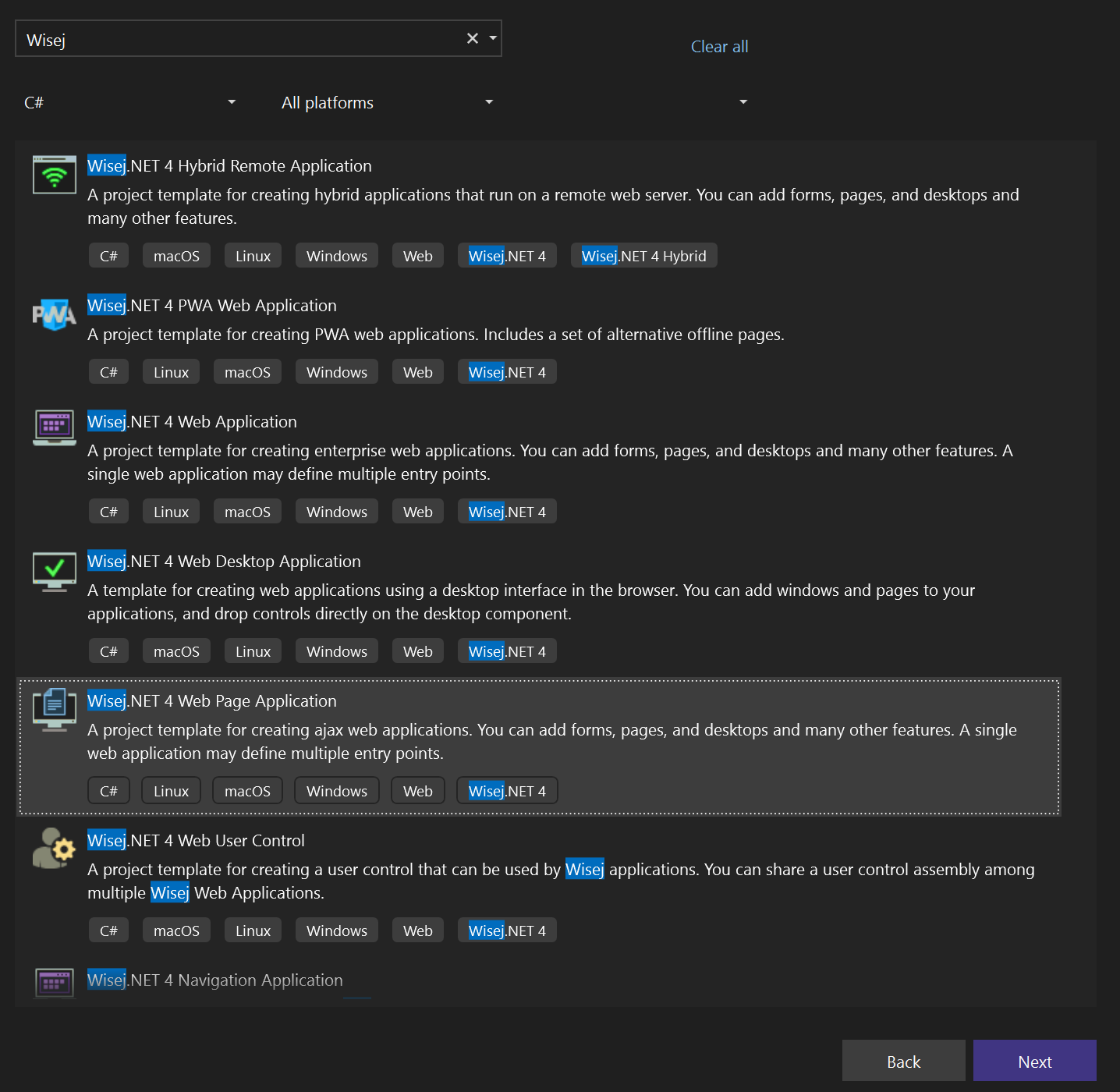 The Wisej.NET 4.1 extension, captured in Visual Studio 2022; the dialog is the same in Visual Studio 2026. The list is filtered to C#; the same templates exist for Visual Basic, except Hybrid Client Application.
Select a template and click Next. Wisej.NET 4 Web Page Application is the right choice for most applications; the project types below describe the others.
If Visual Studio lists no Wisej.NET templates, follow the missing templates instructions. The templates and the designer are installed by the Wisej.NET Visual Studio extension, not by the NuGet package.
Wisej.NET works with any .NET language, including C++, F#, X#, or COBOL.NET. Designer support depends on the language. If the designer does not support your language, write the UI code directly.
Name the project
The next page is the standard Visual Studio one: enter the Project name and the Location, and choose whether the solution goes in the same directory as the project.
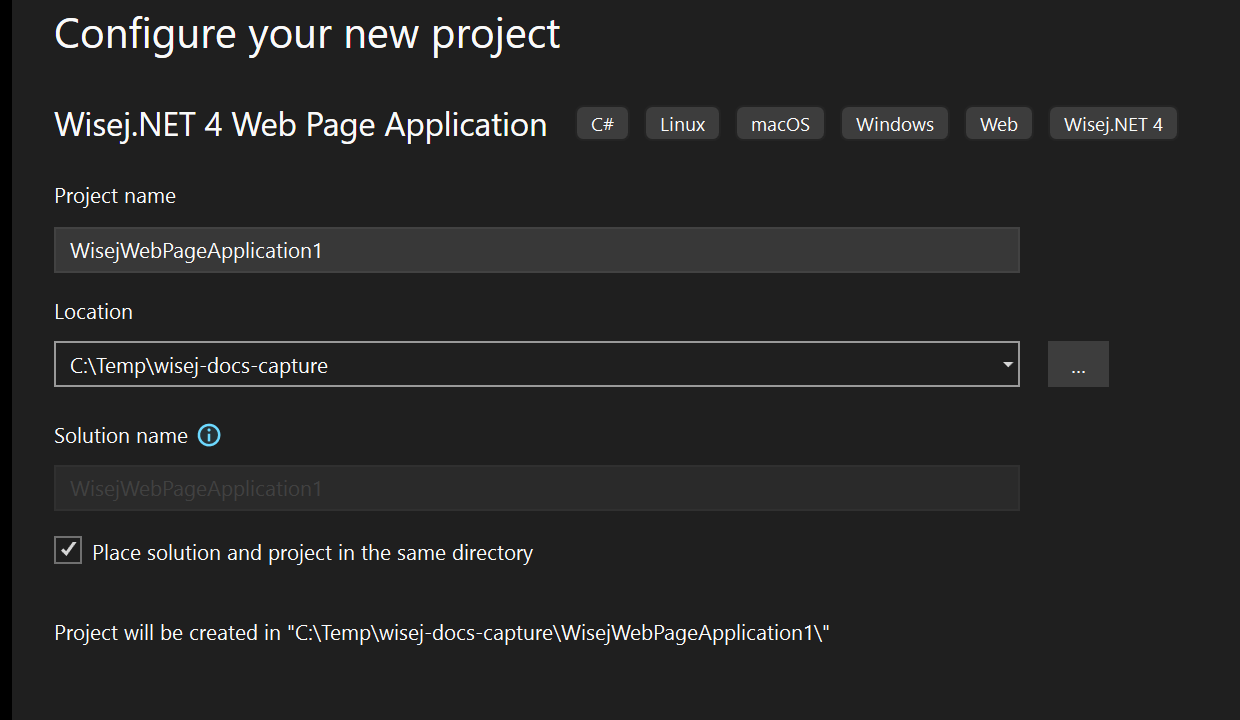 Configure your new project. The project name becomes the root namespace and the name of the
 .csproj or .vbproj.
Click Create. Visual Studio hands over to the Wisej.NET wizard before it generates anything.
The Wisej.NET wizard
Every Wisej.NET 4 template opens the New project setup dialog. Its answers decide which targets the project builds for and which optional files it gets.
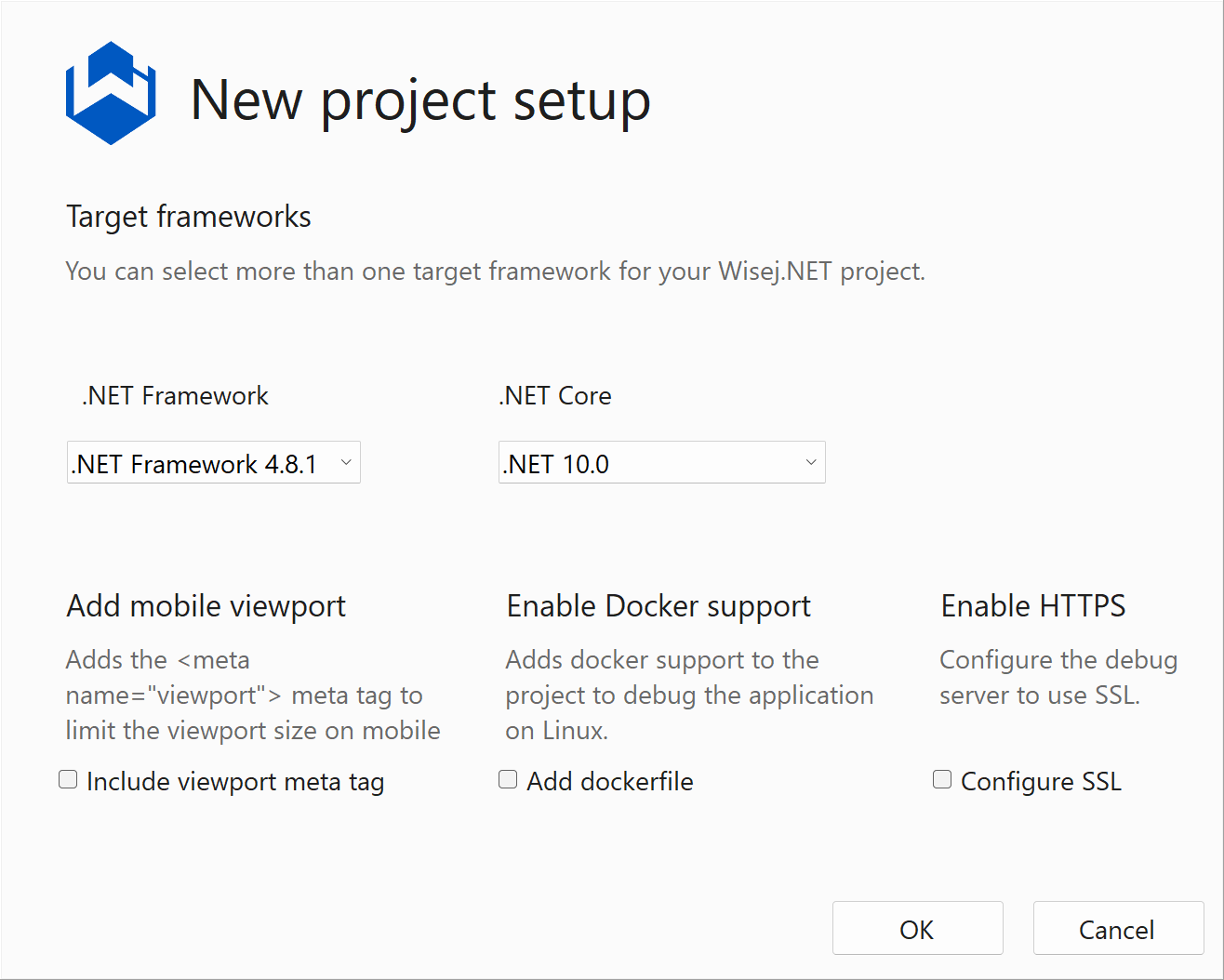 The Wisej.NET 4.1 New project setup wizard. The .NET Core list shows the SDKs installed on the machine.
Target frameworks
A Wisej.NET project can target .NET Framework and .NET Core at the same time, from one project file, and the two lists are independent:
- .NET Framework —
.NET Framework 4.8,.NET Framework 4.8.1, or (None). Pick (None) for a project that builds only for .NET Core. - .NET Core — the .NET SDKs installed on the machine; Wisej.NET 4.1 supports .NET 8 and later. The screenshot shows .NET 10.0 because that is the latest SDK on the machine it was taken on.
The wizard writes the result into the project's TargetFrameworks property, and includes the .NET Framework-specific settings (the IIS Express run command, the Startup file excluded from that target's compilation) only when a .NET Framework target is selected. Selecting both is what the templates did in Wisej.NET 3 and what keeps the project deployable on IIS with .NET Framework as well as on Windows, Linux and macOS with .NET Core; see Multi Targeting.
The Visual Studio designer needs a Windows target to load. With a .NET Framework target the designer runs in-process, as it always has; with .NET Core only, the project needs a net8.0-windows (or later) target in addition to net8.0 for the out-of-process .NET Core designer. See .NET Core Designer for the TargetFrameworks each combination uses and how the two designers differ.
Options
| Option | Check box | What it adds |
|---|---|---|
| Add mobile viewport | Include viewport meta tag | A <meta name="viewport" content="width=device-width, initial-scale = 1"> tag in Default.html, so mobile browsers do not scale the page down. Turn it on for applications meant for phones and tablets. |
| Enable Docker support | Add dockerfile | A Dockerfile for the .NET Core target, a Docker launch profile in launchSettings.json and the Visual Studio container tools package, so the application can be debugged in a Linux container. See Docker Support. |
| Enable HTTPS | Configure SSL | An https://localhost address next to the http://localhost one in the project's launch profile, so the debug server answers on SSL. |
All three are off by default. Click OK and Visual Studio generates the project, restores its NuGet packages and builds it. When the build ends, the Wisej.NET welcome page opens in the IDE.
The Wisej.NET 4 Hybrid templates open a different wizard, New Hybrid project setup, which asks for the target platforms of the native client instead of target frameworks. See Wisej.NET Hybrid.
What the wizard generates
This is what a C# Web Page Application looks like after the wizard. A Visual Basic project has the same files with .vb extensions and a My Project folder in place of Properties.
WisejWebPageApplication1/
├── Properties/
│   ├── AssemblyInfo.cs
│   ├── applicationhost.config
│   └── launchSettings.json
├── Themes/
├── Default.html
├── Default.json
├── favicon.ico
├── Page1.cs
├── Page1.Designer.cs
├── Program.cs
├── Startup.cs
├── Web.config
├── Dockerfile                        (only with Docker support)
└── WisejWebPageApplication1.csproj
| File | What it is for |
|---|---|
WisejWebPageApplication1.csproj | An SDK-style project (Microsoft.NET.Sdk.Web) with the TargetFrameworks the wizard chose and a reference to the Wisej-4 NuGet package, which is the framework itself. Properties such as TargetFrameworks are edited in the file, not in the project property pages; see Update Existing Projects. |
Program.cs | The application's entry point. Wisej.NET calls Main for every new session; the template's Main creates Page1 and shows it. The NameValueCollection argument carries the query-string parameters of the URL that started the session. |
Page1.cs, Page1.Designer.cs | The main page: your code in Page1.cs, the designer-generated InitializeComponent in Page1.Designer.cs. Open Page1.cs in the designer to lay out the page. |
Default.json | The application's configuration: the startup method (startup), the theme, session and response timeouts, PWA and offline options and everything else. The generated file sets only url and startup; the comment block at its top lists every setting. See Configuration. |
Default.html | The startup page the browser loads. It is a plain HTML page that references wisej.wx, the request that bootstraps the client; the viewport meta tag goes here. See Startup. |
Startup.cs | The ASP.NET Core host for the .NET Core target: it builds a WebApplication, calls app.UseWisej(), adds the static file server and runs. It is not compiled for the .NET Framework target, where IIS hosts the application through the module and handler in Web.config. |
Web.config | The ASP.NET configuration for the .NET Framework target: the Wisej.NET HTTP module and the *.wx handler, the default document, the license key (Wisej.LicenseKey) and the default theme (Wisej.DefaultTheme, Bootstrap-4 in a new project). It also carries the commented-out aspNetCore handler to uncomment when deploying the .NET Core build to IIS. |
Themes/ | Empty. Drop custom themes and theme mixins here; see Theming. |
Properties/launchSettings.json | The debug profiles: the project itself on Kestrel at http://localhost:5000 (plus the HTTPS address if you enabled it), IIS Express, WSL, and Docker when Docker support is on. |
Properties/applicationhost.config | The IIS Express site configuration the .NET Framework target runs with. |
Properties/AssemblyInfo.cs | Assembly attributes, including the commented-out WisejResources attribute that merges embedded JavaScript and CSS resources into the Wisej.NET package. |
favicon.ico | The browser tab icon. |
Dockerfile | Only with Docker support: builds an image from the mcr.microsoft.com/dotnet/aspnet base for the .NET Core target and installs the standard fonts. |
The entry point is the one file every template shares, so it is worth reading once:
- C#
- VB.NET
using System;
using System.Collections.Specialized;
using Wisej.Web;

namespace WisejWebPageApplication1;

static class Program
{
    /// <summary>
    /// The main entry point for the application.
    /// </summary>
    /// <param name="args">Arguments from the URL.</param>
    static void Main(NameValueCollection args)
    {
        new Page1().Show();
    }
}
Imports System
Imports Wisej.Web

Module Program

    ''' <summary>
    ''' The main entry point for the application.
    ''' </summary>
    Public Sub Main()

        Application.MainPage = New Page1()

    End Sub

End Module
Run it
Press F5. Visual Studio starts the debug server and opens the application in the browser. A project with two targets is debugged on one of them at a time; the first one listed in TargetFrameworks is the default, which matters for Docker — see Docker Support.
To design the page, build the project once, then open Page1.cs in the designer and drag controls from the toolbox onto the surface. The Designer page describes the design surface; the first time it opens it asks for a license key, see License Activation. If the designer fails to load, see Designer Error.
Project Types
The templates listed under Wisej.NET 4. All of them run the same wizard and generate the same files; they differ in the main view they create and in what Program.cs does with it.
Web Page Application
This is the recommended project template.
Creates a web application with a main page (Page1) that fills the browser and can contain any control. To navigate between pages, create additional pages and call their Show() method.
Web Application
Creates a web application whose main view is a floating window (Window1) displayed in the browser. Add a navigation system to manage the application's forms.
Web Desktop Application
Creates a project with a custom desktop container (MyDesktop) resembling the Windows desktop, assigned to Application.Desktop at startup, and a first window opened on it. You can add taskbar items, display floating windows, and change the taskbar position. Use this template to build a desktop-style environment in the browser.
PWA Web Application
Creates a web application with a main page, like the Web Page Application template, plus the files a browser needs to recognize it as a progressive web app: a manifest.json, an InstallAppPanel control that shows a custom installation prompt, and eight variants of an offline page under Offline and Offline-1 to Offline-7, of which the one named Offline is used.
The app can be installed on the client. Use the manifest to configure its basic colors and icons. With enablePWA on, Wisej.NET registers a service worker that caches the client-side files locally so the app launches faster.
Wisej.NET applications cannot work offline. The PWA template's Offline folder is preloaded by the service worker, and Wisej.NET switches to Offline/Default.html when it detects that the device lost connectivity. enablePWA and offlineUrl are set in Default.json; see Offline.
Navigation Application
Creates a web application with a navigation bar and a set of ready-made panels (home, counter, weather forecast), modelled on the Blazor app template. It is the quickest way to see a multi-view Wisej.NET application with data and navigation already wired up.
Web User Control
Creates a library project with a custom Wisej.NET user control that can be shared among Wisej.NET applications. It has no startup files of its own.
Hybrid Remote Application, Hybrid Local Application, Hybrid Client Application
The three templates under Wisej.NET 4 Hybrid build applications that run inside a native mobile or desktop shell. Remote runs the Wisej.NET application on a web server, Local runs it on the device, and Client (C# only) is the native client itself. See Wisej.NET Hybrid.
Templates for earlier versions
The Wisej.NET 4.1 extension installs the Wisej.NET 4 templates only. Since Wisej.NET 3.0 the templates have been part of the Wisej.NET for Visual Studio extension, so for an earlier release download that release's extension from the archive of previous builds on wisej.com/builds and install it the same way. The NavigationBar template that used to be a separate download is the Navigation Application template above.
If the templates do not show up in Visual Studio, or the designer does not open, see: