Overview
Wisej.NET was designed to be extensible and open to all sorts of technologies from the start. The extensions published on the web site are a fraction of what is possible and what will be available during the product’s lifetime. This short document outlines the different extension types, how to use the published projects, and how to build new extensions.
Note that all the extensions that are currently published are also already precompiled and included in the installer and are automatically added to Visual Studio’s toolbox.
We also offer a wide set of Premium Extensions allowing to smoothly integrate component suites like DevExtreme, Syncfusion EJ2, Telerik KendoUI, Infragistics IgniteUI and more.
Source Code
The source code for all the extension is freely available on GitHub. You can fork it to your repo and you can log issues in the repository. We also have a web page that lists some of the early extensions here.
If you create or modify an extension in a way that can be useful to others, please feel free to either create a pull request or simply log an issue and suggest your solution.
How To Use
First, create a new Wisej project or open an existing one in Visual Studio.
In Visual Studio, open the Solution Explorer. (View -> Solution Explorer) Right-click on the project and choose "Manage Nuget Packages".
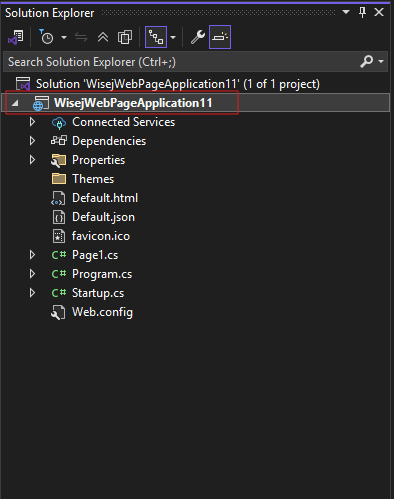 This is the project in the Solution Explorer. Right-click here
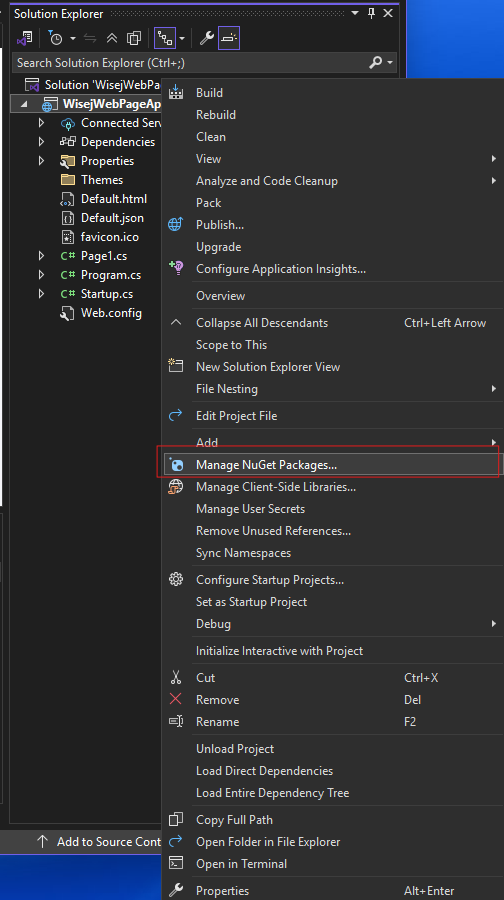 Choose "Manage Nuget Packages" from the drop-down menu
The NuGet Package Manager will open. It looks like this:
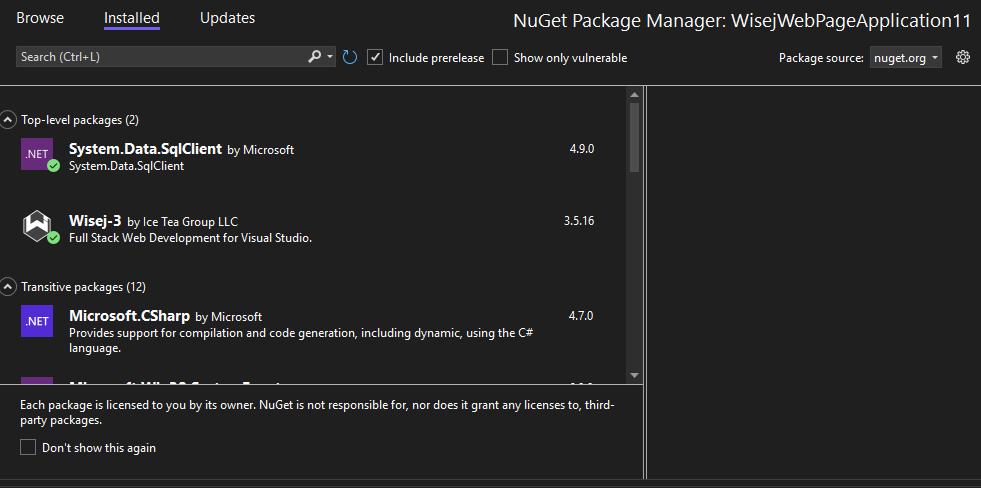 NuGet Package Manager
Click "Browse" and type "wisej" in the search box. Here you will see all of the wisej extensions.
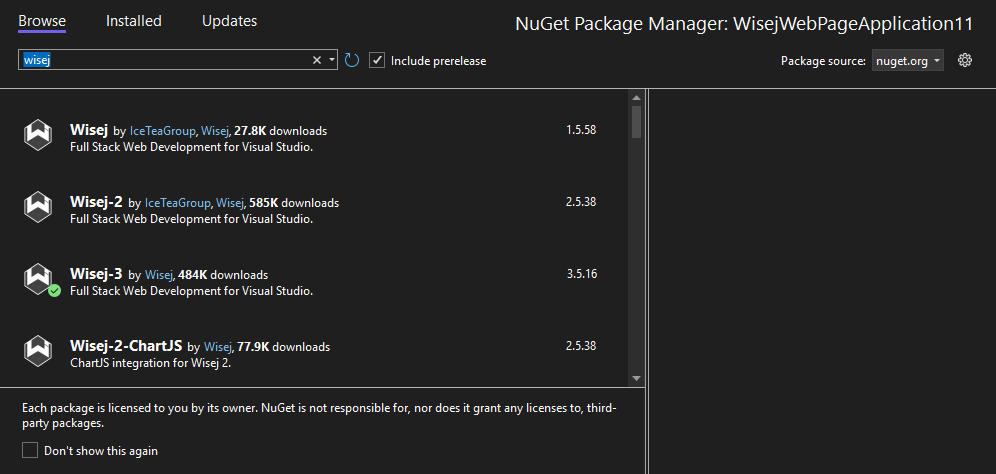
You can search "wisej 3" for the more recent Wisej 3 extensions, ie "Wisej-3-ChartJS". "wisej 2" will find you the older Wisej 2 extensions, ie "WIsej-2-ChartJS" All Wisej 3 extensions start with "Wisej-3" and all WIsej 2 extensions start with "Wisej-2".
Once you have found the extension you are looking for, click on it to select it. Here we have selected the Wisej-3-ChartJS extension.
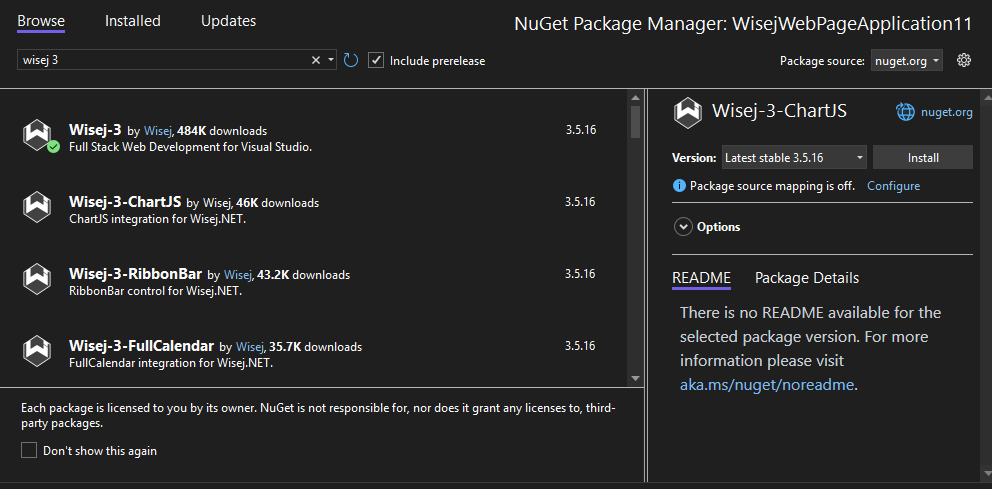 Wisej-3-ChartJS has been selected
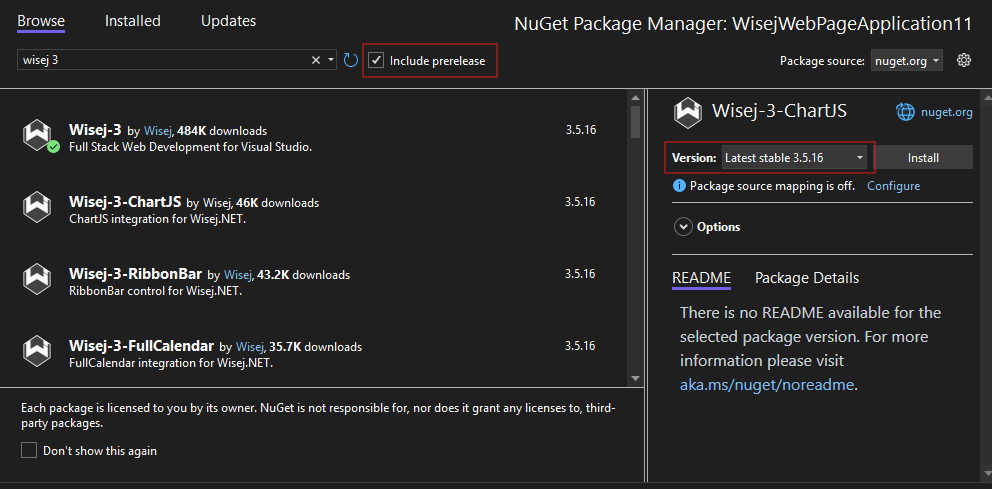
Next, select the version from the dropdown menu. It defaults to the latest version. Note that you can check "include prereleases" to see test versions of the extension.
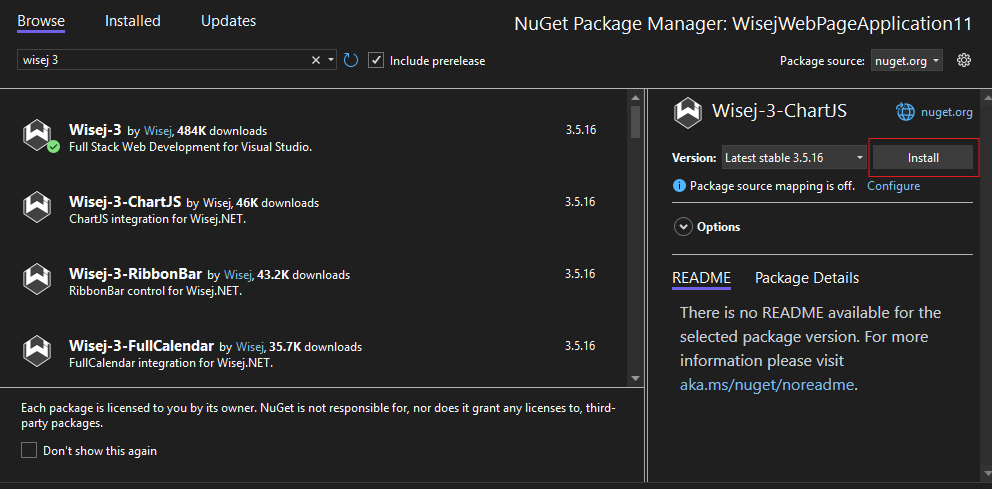
Click "install"
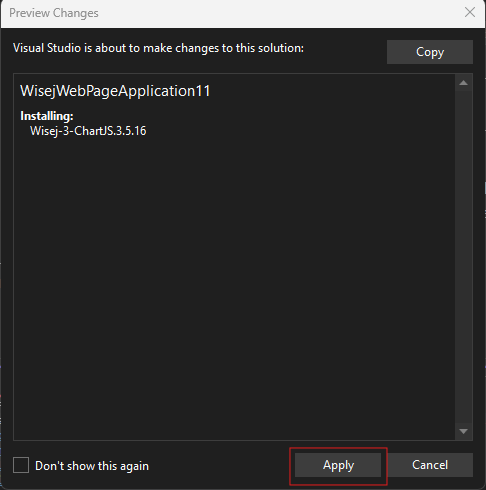
This popup will appear. Click "Apply"
The extension has been installed! If you want to double-check, you can view it by expanding "Dependencies" and looking under "Packages" in the solution explorer.
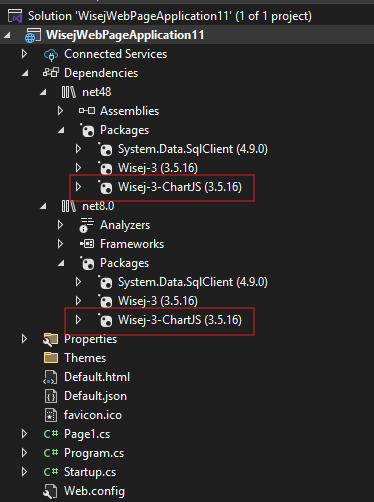 In the Solution Explorer we can see the nuget package has been installed by expanding "Dependencies"
MCP Endpoint
The documentation is also available through an MCP (Model Context Protocol) endpoint, enabling AI tools and agents to access it directly as a structured, queryable source. Instead of relying on static content or embeddings, MCP allows real-time discovery, search, and retrieval of authoritative information. Use the following endpoint to connect your AI client and interact with the documentation programmatically: /mcp.